Set Up Make Integration
With the Make.com integration, your AI agent can run your Make scenarios during a conversation: send data to other apps, create records, or trigger any automation you build in Make.
Connect Make to Your AI Agent
- In your AI agent settings, go to the Integrations tab.
- Find Make in the list, click Install, then open its settings.
- Paste your Make.com address: log in to Make and copy the link from your browser’s address bar (for example,
https://us1.make.com/...). - Create an API token:
- In Make, click your profile icon in the top-right corner → Profile → API access. Click Add token.
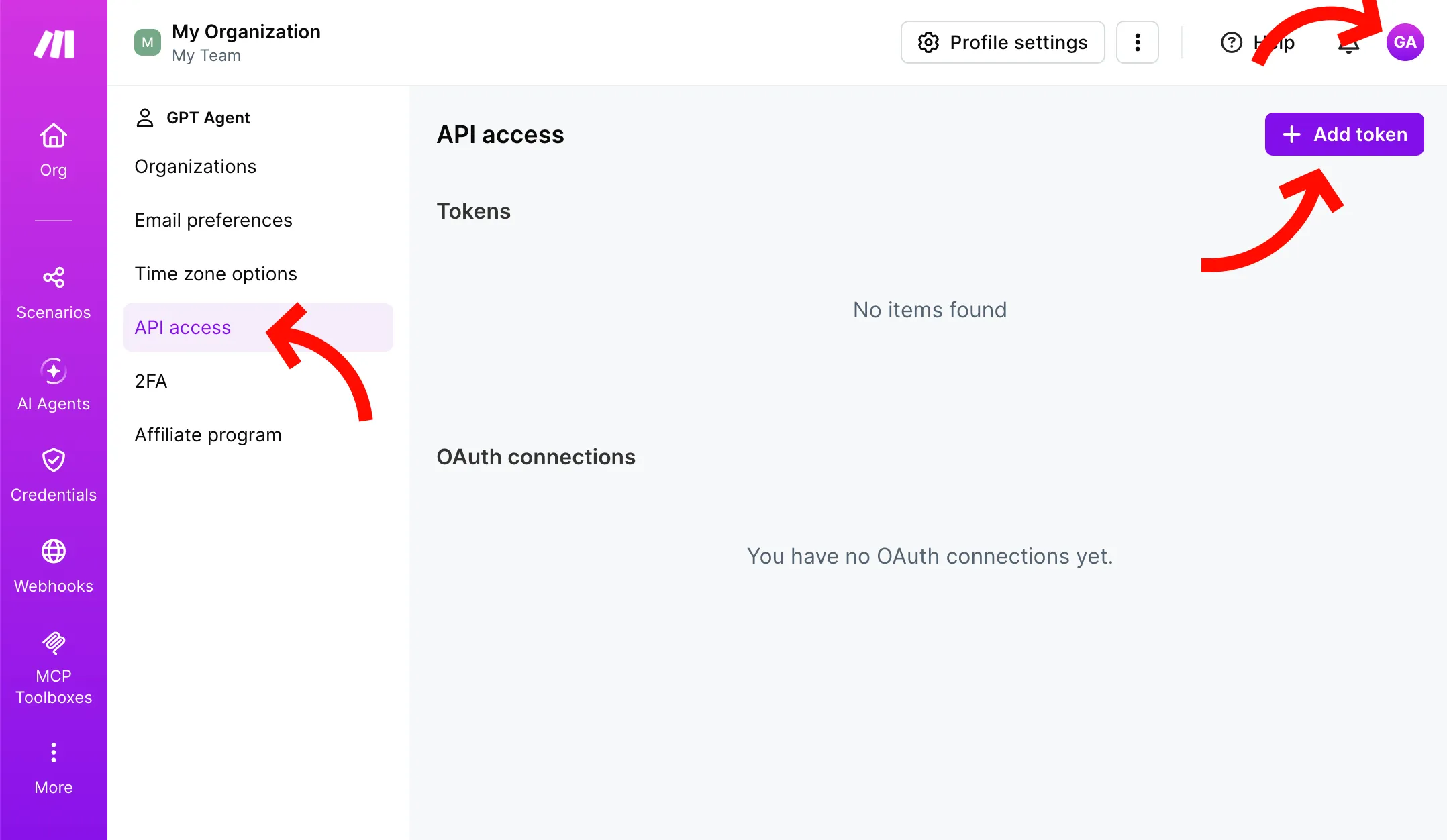
- In the Add token dialog, check Select All in the scope list — or at least
mcp:use,scenarios:read,user:read. Enter any label and click Add.
- In Make, click your profile icon in the top-right corner → Profile → API access. Click Add token.
- Copy the token, paste it into the API Token field, and click Connect.
Enable Scenarios
- After connecting, your scenarios appear in the Make on-demand scenarios section. Only scenarios with on-demand scheduling are shown.
- Turn on each scenario you want the agent to use.
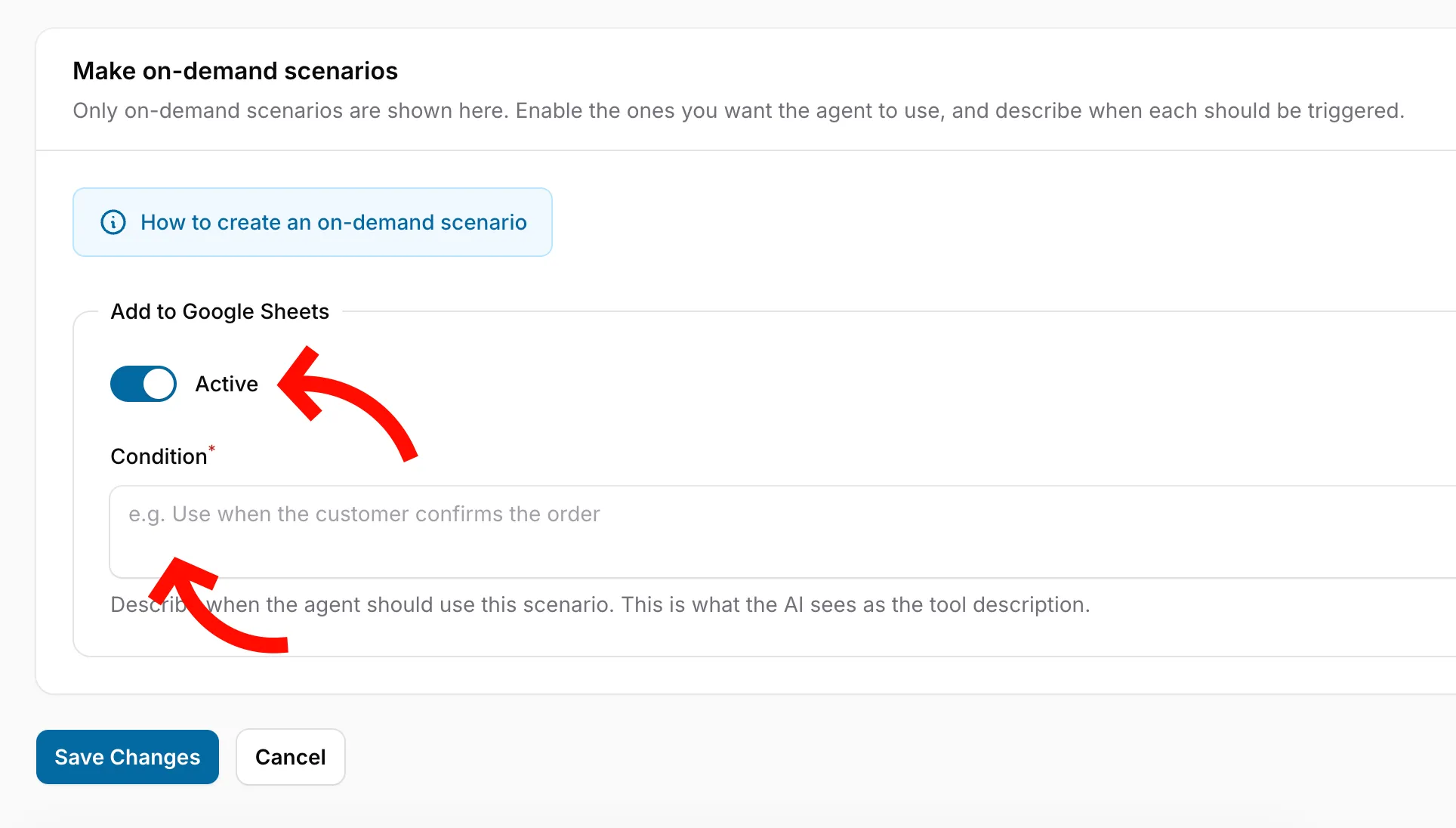
- In the Condition field, describe when the agent should run it — for example, “Use when the customer confirms the order”. The AI uses this description to decide when to run it.
- Click Save Changes.
That’s it! When a conversation matches a scenario’s condition, the agent runs it and can use the response in its reply.